
Toolsila guide
How Much Can You Compress an Image Without Losing Quality?
Understand what “without losing quality” can honestly mean, then find a smaller image that still looks right at its real viewing size.
By Toolsila Editorial TeamUpdated
Start with a result you can reproduce
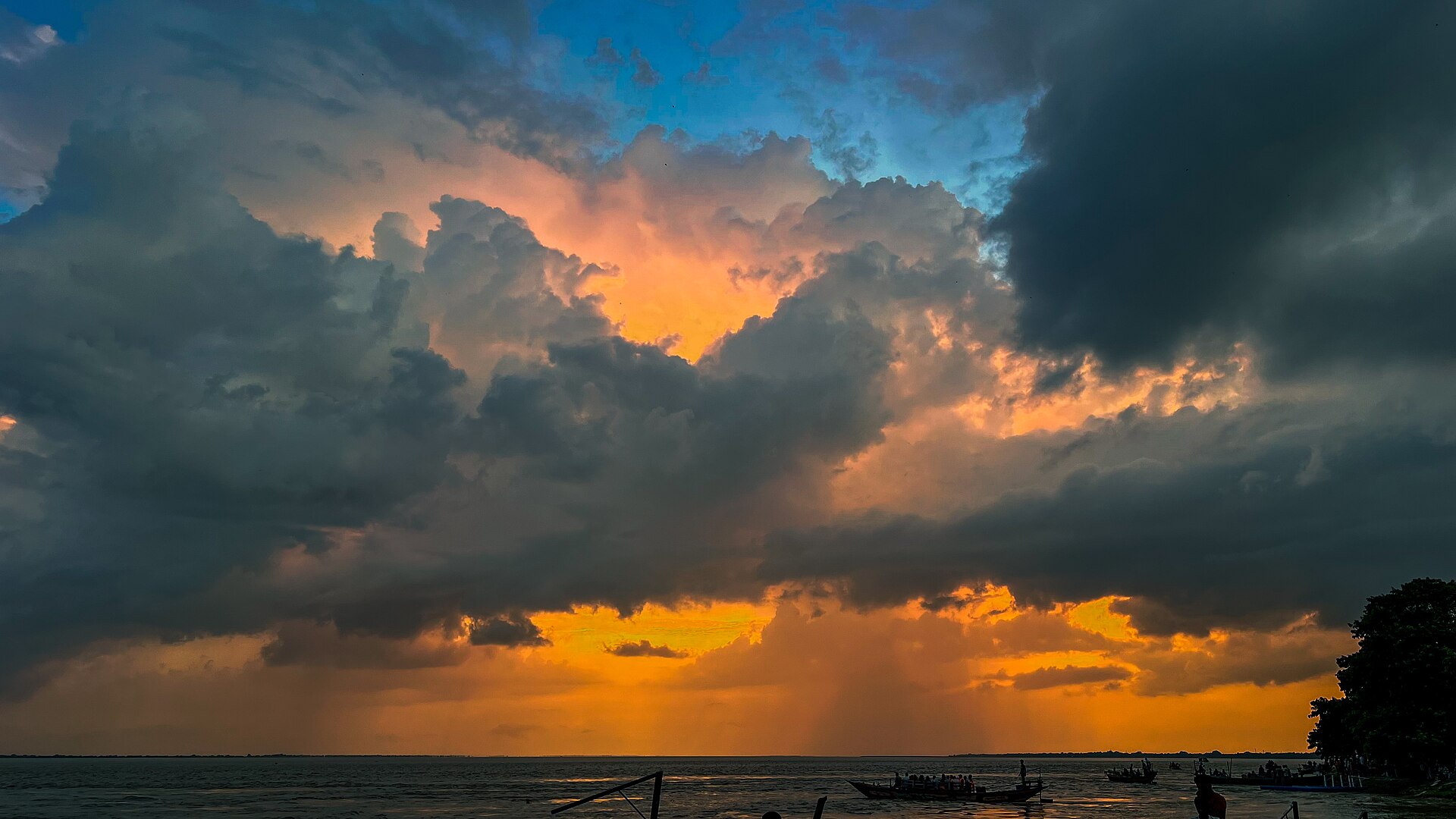
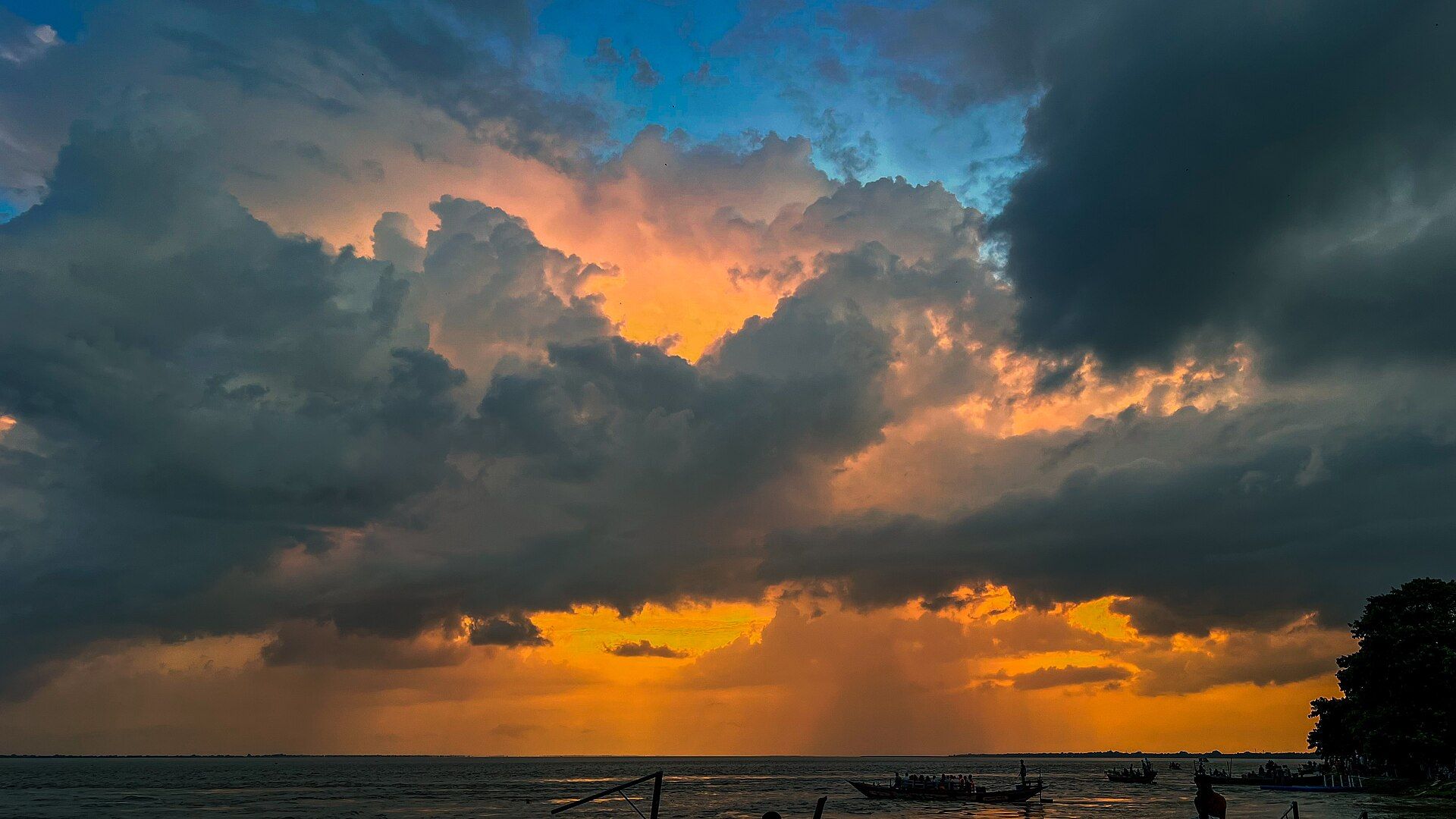
Our published cloudscape example became 10.8% smaller, from 238,301 bytes to 212,540 bytes, at the same 1920 × 1080 dimensions. That result used JPEG output at 80% quality. It is a useful counterexample to claims that every photograph will shrink dramatically: this source was already a JPEG.
Open the Toolsila image compressor, choose Try a sample image, keep 80% and Keep original, leave the target-size option off, then select Compress image. You will run the public source through the actual tool on your device. Your browser’s encoder may produce a different byte count from the saved example. Compare the result, rather than expecting an exact percentage.
Reproducible evidence
Measured Toolsila compression, before and after
Source JPEG · 238,301 bytes
Toolsila result · 212,540 bytes
- Method
- Processed the attributed local source through the published Toolsila compressor and compared file metadata plus visible cloud edges, gradients, water, and shoreline detail.
- Settings or conditions
- browser-image-compression 2.0.2; Keep original JPEG; quality 80%; no resize; 1920 × 1080 input.
- Observed result
- The output remained 1920 × 1080 and measured 212,540 bytes, 25,761 bytes or 10.8% below the 238,301-byte source.
- Test or review date
- August 17, 2026
- Limitations
- One landscape cannot predict savings or perceived quality for portraits, screenshots, noisy photos, text, or files encoded by other software.

What “without losing quality” can mean
Lossless compression preserves decoded pixels. Lossy JPEG compression discards information even when a change is hard to see at the image’s display size. Toolsila’s JPEG quality control is a lossy setting; 80% does not mean 80% of the original bytes, or an objectively measured 80% of its visual quality.
Keep the original as a master. For a delivery copy, decide what must remain readable: a product label, a face, fine foliage, or the gradient in a sky. For an archival or pixel-exact copy, use a suitable lossless workflow instead of judging by appearance alone. The format guide explains PNG, JPEG, and WebP choices.
Make a three-setting comparison
- Run the sample at 80% JPEG. Note the reported bytes and inspect the cloud edges, orange-to-blue sky, water, and dark shoreline.
- Download that candidate, then set 60% and choose Compress again. The tool starts from your selected original, not from the previous result.
- Repeat at 40%. Look for steps in the sky gradient, blocks around cloud edges, or smearing in the water.
- Compare each downloaded image at your destination’s display size and at native pixel size in an image viewer. The tool’s zoom is relative to its fitted preview, so its 100% is not necessarily one image pixel per screen pixel.
- Keep the smallest candidate whose important details remain acceptable. If all three look poor, return to a higher setting or retain the original.
| Record for each candidate | Why it matters |
|---|---|
| Format and quality setting | Makes the experiment repeatable in the same browser |
| Output bytes and dimensions | Separates compression from resizing |
| Detail that changed | Connects the size saving to a visible cost |
| Final display size | A thumbnail and a full-screen image need different detail |
Measured three-setting run: October 28, 2026
We repeated those steps in the desktop Chromium-based preview browser and downloaded all three results from the production build. Every file remained 1920 × 1080. Each run started from the same 238,301-byte JPEG, kept JPEG output, and left the target-size option off.
| JPEG quality setting | Downloaded bytes | Smaller than the source |
|---|---|---|
| 80% | 212,540 | 10.8% |
| 60% | 95,951 | 59.7% |
| 40% | 67,079 | 71.9% |
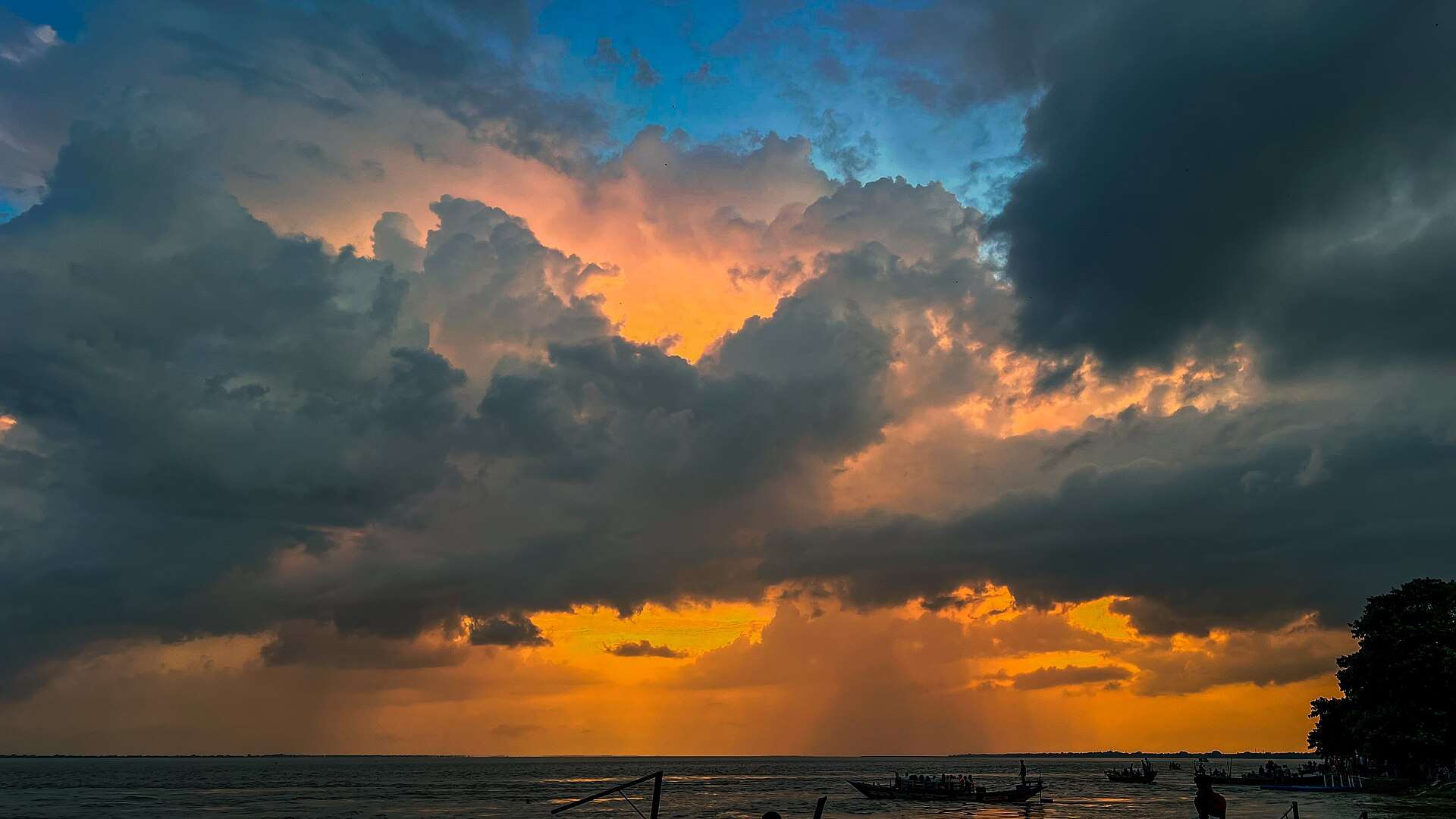
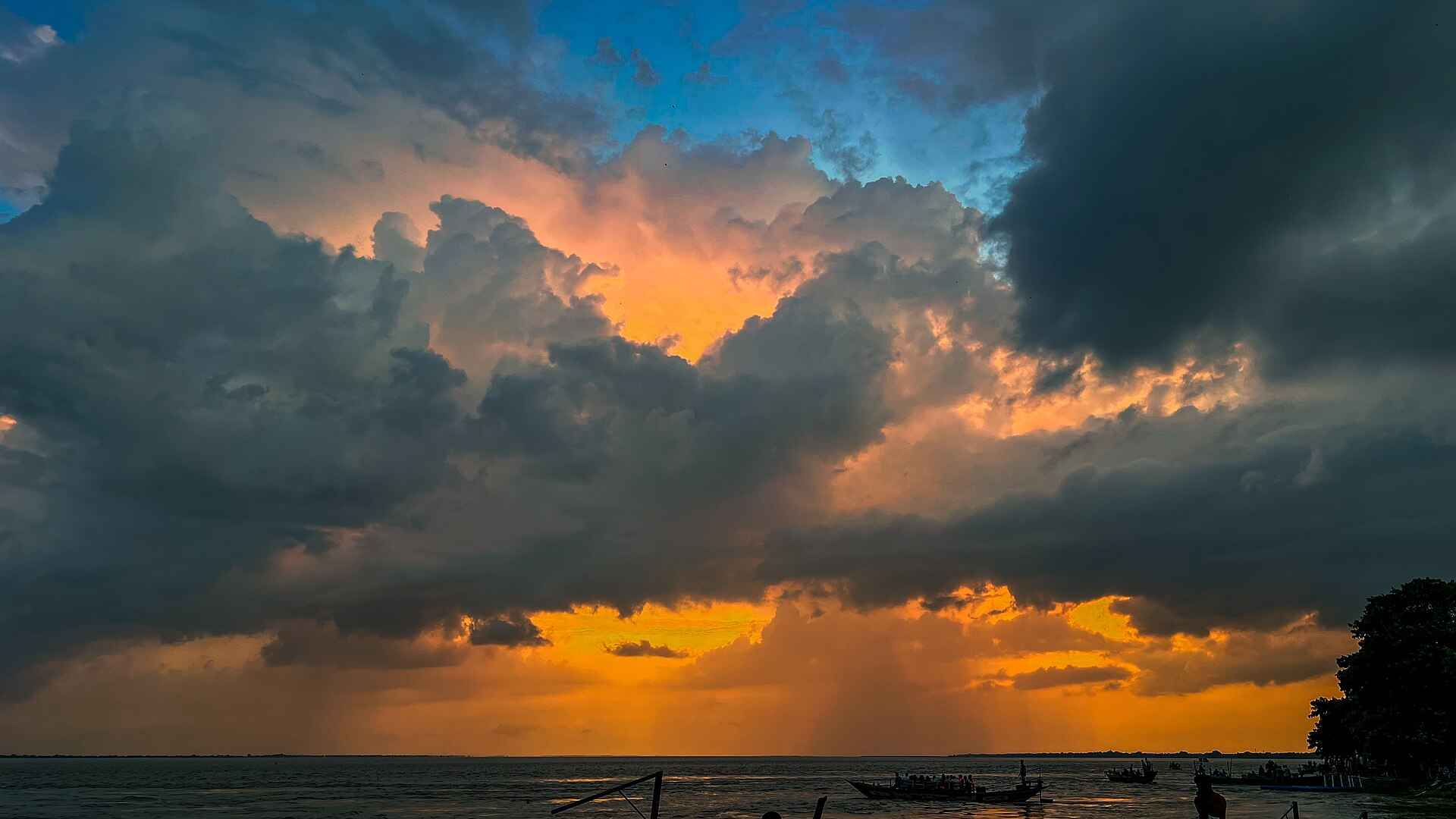
The 40% file saves another 28,872 bytes compared with 60%. Whether that saving is worth the change to the sky and cloud detail is a visual decision; these percentages measure bytes, not fidelity. Inspect the downloadable files at the size you need. This is one landscape in one browser, not a benchmark for text, faces, or every photograph. You can also test WebP, but equal quality numbers across formats do not establish equal fidelity.
When a smaller file is the wrong result
Text becomes fuzzy: inspect labels and sharp lines. Raise quality or retain a lossless graphic format. A smaller photo is not useful if a customer cannot read its packaging.
The file barely shrinks or grows: the source may already be efficient. Re-encoding can add bytes. Keep the original if the output brings no benefit; the byte report deliberately allows negative savings.
A transparent logo gets a white box: JPEG cannot retain alpha transparency. Keep PNG or use an alpha-capable format accepted by the destination. Use a flattened JPEG only when white is intentional.
The target cannot be reached: the tool searches within a bounded number of quality attempts and keeps dimensions unchanged. It reports when the output misses the target. If resizing is allowed, use a separate resize workflow rather than repeatedly damaging the same pixel grid. See file size versus resolution.
Sources and review notes
Editorial update: October 28, 2026. Reworked this guide around downloadable files, live sample replay, and a measured three-setting inspection procedure using browser-image-compression 2.0.2. The historical 80% evidence above retains its August 17, 2026 date; the October 28 rerun reproduced its 212,540 bytes and added the 60% and 40% downloads. File dimensions and byte counts were checked on the downloaded JPEGs. The preview-zoom caveat reflects the current Toolsila interface.
Format references: W3C PNG specification for PNG’s lossless representation and Google WebP documentation for its encoding modes. The photograph’s source and CC0 license are recorded with the evidence above. Visual acceptance remains a decision for your image and destination.