

image-tools
Compress Image Online
Compress one image or a batch of up to 10 with shared presets, target-size guidance, and local before-and-after previews. Pixel dimensions stay unchanged, and files are not uploaded to Toolsila.
Loading tool…
By Toolsila Editorial TeamUpdated
Before and after: inspect the actual files
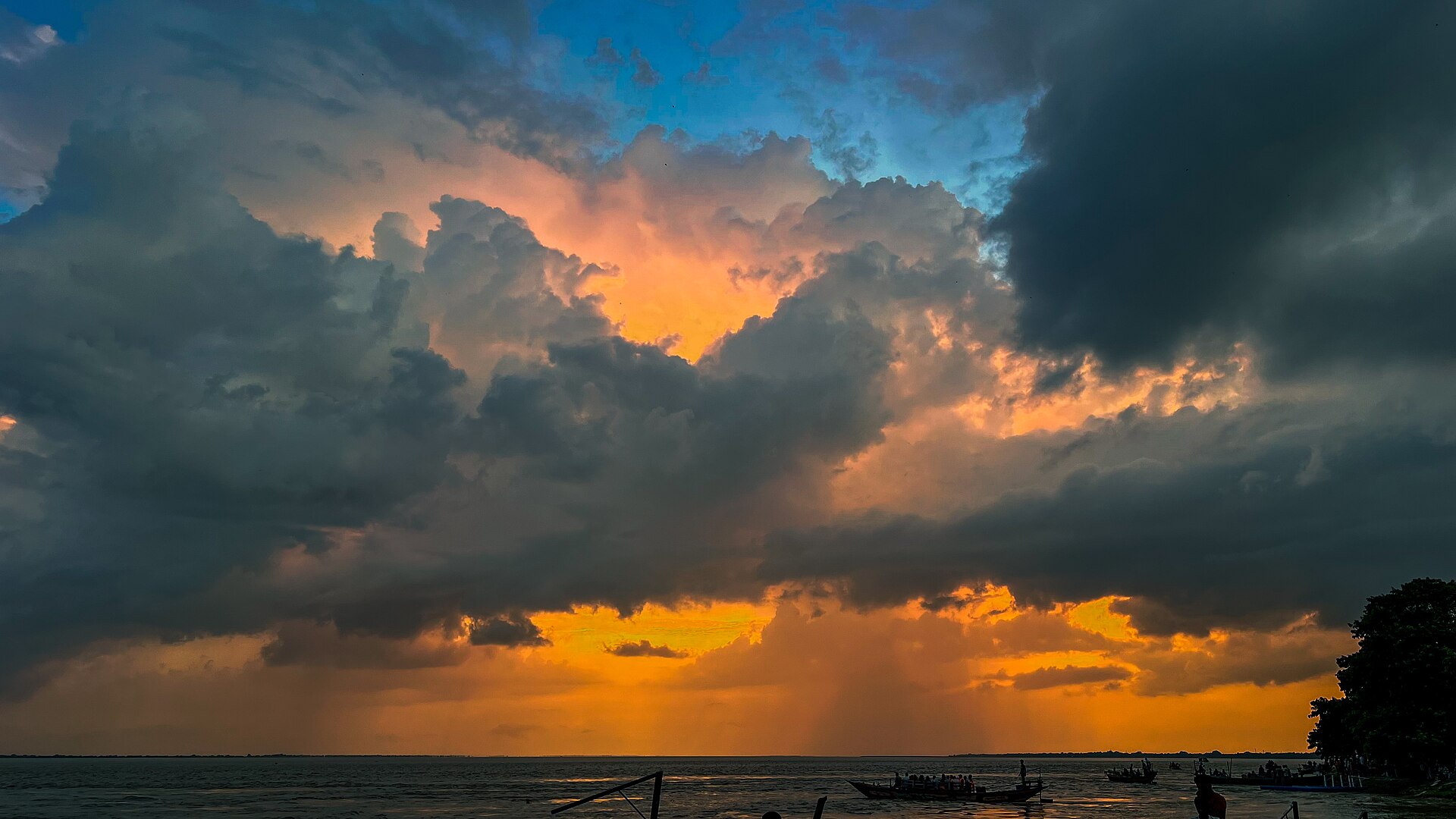
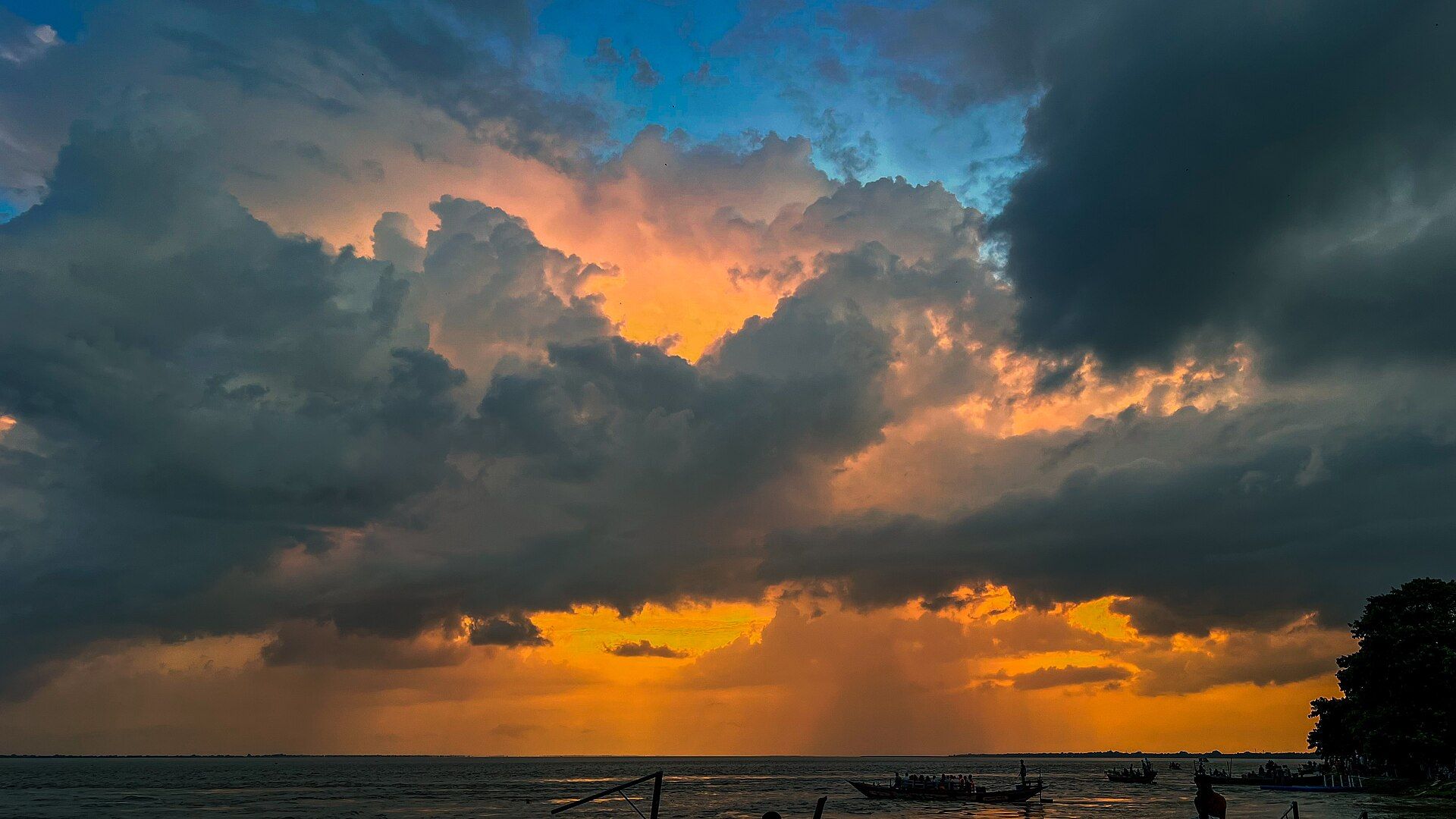
These are the original example files, displayed to fit your screen without another format conversion. Open a file to inspect its full resolution, or use “Try a sample image” above to repeat the workflow on your device.
Example sources, licenses, and processing settingsHow it works
Image compression changes how pixel information is encoded so the file can use fewer bytes. Toolsila passes each selected JPEG, PNG, or WebP to browser-image-compression in your browser, one at a time. Where the browser supports the necessary worker features, the library can use a web worker; otherwise it uses its supported browser fallback. Inputs and locally built ZIP downloads are not submitted to a Toolsila application server.
The quality control runs from 40% to 100% and starts at 80%. For JPEG and WebP, a lower setting usually discards more visual information and can produce a smaller file. A higher setting generally preserves more detail but may save fewer bytes. Content matters: flat graphics, camera noise, textured foliage, text, and smooth gradients respond differently, so no single number guarantees a particular size or appearance. At very high quality, an output can even be similar in size or larger.
The tool deliberately keeps the original width and height. You can use Web, Email, or High quality presets, adjust quality manually, preserve the source format, or choose JPEG or WebP. An optional target invokes a bounded JPEG/WebP quality search; when the target cannot be reached without resizing, the tool keeps the best result and says so. Choosing JPEG for a transparent PNG or WebP replaces transparent areas with white, so the widget warns before processing. A batch can contain up to 10 files, each no larger than 20 MB or 36 megapixels. A visible local-processing indicator reports real compression progress. After the batch finishes, the page reveals the preview area, where successful results can be checked one at a time with Previous and Next controls.
Who it is for
Site owners preparing lighter images
Reduce image file size before placing a photograph in a page, article, portfolio, or product listing. The side-by-side size report helps you decide whether the saving is worth the visual change. For production publishing, also choose suitable displayed dimensions and responsive image variants in a separate resizing step.
People sharing within file limits
Make an email attachment, application image, or chat upload smaller without first handing the source to another processing server. Keep the same pixel dimensions when the recipient requires them, then compare the downloaded output with the original before discarding anything.
Designers testing formats and quality
Compare a source-format export with JPEG or WebP at several quality levels. This is useful for finding a practical delivery copy, not for preserving an archival master. Transparent artwork needs special attention: keep PNG or choose WebP when transparency must remain, and avoid JPEG unless a white background is intentional.
How to use this tool
Try the example or choose your sources. Use “Try a sample image” to load the public example through the same processing path without selecting a personal file. Select, drop, or paste up to 10 JPEG, PNG, or WebP images. Each can be up to 20 MB and 36 megapixels. The compressor decodes every file to verify its dimensions and format; one invalid item does not stop the rest of the batch.
Choose the output format. “Keep original” is the safest default because it retains JPEG, PNG, or WebP as appropriate. Choose WebP when your destination supports it and you want to test a modern delivery format. Choose JPEG for photographic content only when you do not need transparency; transparent input areas will be filled white.
Set quality with the slider. Start at 80%, process once, and inspect the result. Move lower when the file is still too large, or higher when you see distracting banding, blockiness, smearing, or lost texture. The percentage is an encoder instruction rather than a promise that 80% of the original quality or bytes will remain.
Process and compare. The protected processing state prevents parallel jobs and stale results, while the visible indicator reports local progress. When the complete batch finishes, the page reveals the preview area. Compare original and output sizes, the reported percentage saved, dimensions, and both previews. Check faces, type, fine lines, gradients, and high-contrast edges at the size people will actually see.
Preview and download delivery copies. Switch between original and result at the same zoom, enter an exact zoom from 25% to 400%, or use the slider and zoom buttons. In a successful batch, use Previous and Next to inspect each result without returning to the queue. Download files individually or package successful results in a local ZIP. Outputs add
-compressedand the correct extension; duplicate names receive stable numeric suffixes. If a result is larger or visually unsuitable, adjust the shared settings and process again.
Tips
Separate compression from resizing in your decision. Compression changes encoding while this tool keeps width and height. Resizing removes pixels and can create much larger savings when an image is physically oversized for its use. For example, a full camera frame used as a small card should usually be resized in a later workflow as well as compressed.
Evaluate photographs and graphics differently. JPEG often suits opaque photographs, while PNG can be appropriate for transparent art, screenshots, diagrams, and sharp flat-color elements. WebP can handle photographic compression and transparency, but confirm that every required destination accepts it. Format conversion is a design and compatibility choice, not an automatic upgrade.
Inspect smooth skies, skin, shadows, lettering, and repeated patterns. These areas reveal banding, ringing, blocks, or smeared detail sooner than a busy thumbnail. Compare at normal viewing size and at a closer zoom; the normal-size view shows practical impact, while zoom helps explain what the encoder changed.
Do not chase the smallest possible number blindly. A tiny file that damages a product label, portfolio image, or client proof is not a useful result. Choose a clear quality threshold for the destination, then take the smallest output that still meets it. Different images may need different settings even in the same project.
Retain the original as your master. Recompressing an already lossy JPEG can compound artifacts, and a converted delivery file may no longer contain transparency or the same encoding characteristics. Return to the best available source whenever you need another size, format, crop, or quality level.
Frequently asked questions
Can I compress image online without uploading it?
Yes. Toolsila loads the site code, then reads and encodes selected images locally in the browser. It does not send them or the locally built ZIP to a Toolsila application server. Browser extensions, device-management software, operating-system services, and your own environment remain outside the site’s control, so “local” describes this tool’s processing path rather than every layer of the device.
Does adjustable quality mean no quality loss?
No. JPEG and lossy WebP compression trade some image information for a potentially smaller file, especially as quality decreases. PNG behavior is different and may not shrink much through this workflow. The preview and size comparison exist so you can make an informed tradeoff. Toolsila does not claim guaranteed lossless results or guaranteed savings.
Which formats, sizes, and dimensions are accepted?
A batch can contain up to 10 JPEG, PNG, or WebP inputs. Each can be up to 20 MB and 36 megapixels. The tool does not resize width or height. Output can keep the original format or use JPEG or WebP. Corrupt, unsupported, oversized, or excessively large items are marked separately before compression begins.
What happens to transparency if I choose JPEG?
JPEG cannot store an alpha channel. If the selected PNG or WebP contains transparent pixels, the widget warns that a JPEG result will place those areas on white. Keep PNG or choose WebP when transparency matters. If a white backdrop is what you want, still inspect soft semi-transparent edges because their appearance changes when flattened.
What quality setting should I use?
There is no universal best setting. Eighty percent is a practical starting point, not a guarantee. Process the image, compare important details and the file-size report, then adjust. A clean photograph may tolerate a different setting from a noisy night scene, a screenshot with text, a gradient illustration, or an image that has already been compressed.
Why did the compressed file save very little or become larger?
The source may already be efficiently encoded, the selected quality may be high, or the chosen format may not suit the content. PNG sources in particular do not follow the same quality-to-size pattern as lossy photographs. The tool reports the actual byte comparison rather than inventing a saving; try another suitable format or setting, or keep the original.
Is lowering quality the same as resizing an image?
No. Lowering quality changes how existing pixels are represented and may discard subtle information; resizing changes the number of pixels. This tool intentionally preserves dimensions, including during a target-size search. When a source is much wider or taller than its final display, a separate resize can reduce file size substantially, but it also changes the available resolution.
